How to generate Change History Report in SharePoint
For years, SharePoint lacked any meaningful reporting capabilities, especially when it came to governance. There were some reports available at the site (site collection level), but they were pretty limited. Besides, with the flat architecture we now have in modern SharePoint, there were really no options at the tenant-level.
That finally changed with the Advanced Management module in the SharePoint Admin Center. We now have a growing number of reports that give SharePoint admins and business users meaningful insights to keep things under control. In this article, I would like to explain one of the reports available in Advanced Management: the Change History Report.
The objective of the Change History Report
Change History Report tracks various administrative setting changes made at the tenant or site level. For example, changes to whether external sharing has been turned on or off, changes to storage limits, or versioning settings. This might be necessary for investigative or troubleshooting purposes, or to figure out why a site suddenly started behaving differently.
Create Change History Report
- To access the Change History Report, click on the Microsoft 365 App Launcher > Admin

- From the list of available Admin Centers, click SharePoint

- To access the report, you can either click on Change history under Reports or click on Advanced Management

- To generate a report, click on Create report (in the image above)
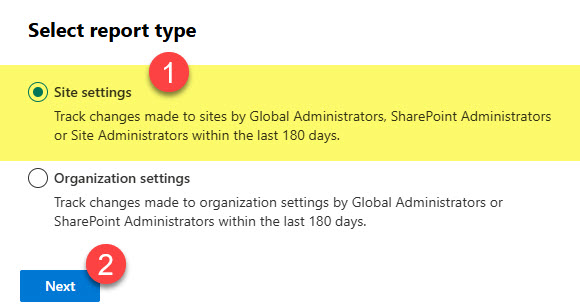
- You will then need to choose the report type: Site Settings (for admin changes made to a site) or Organization Settings (for admin changes made at the tenant level). For this use case, I am choosing Site settings. Click Next.
- Give your report a name, provide a date range, specify the sites you want to investigate, and also who made a change. Click Create report.

- Likewise, you can choose Organization settings for the report type

- Very similar details screen for this one as well

- Once you click Create report, it will go into a queue, and the report might take a few hours to generate.

- Once generated, click on Report, then the Download report button to download the CSV report to your PC.

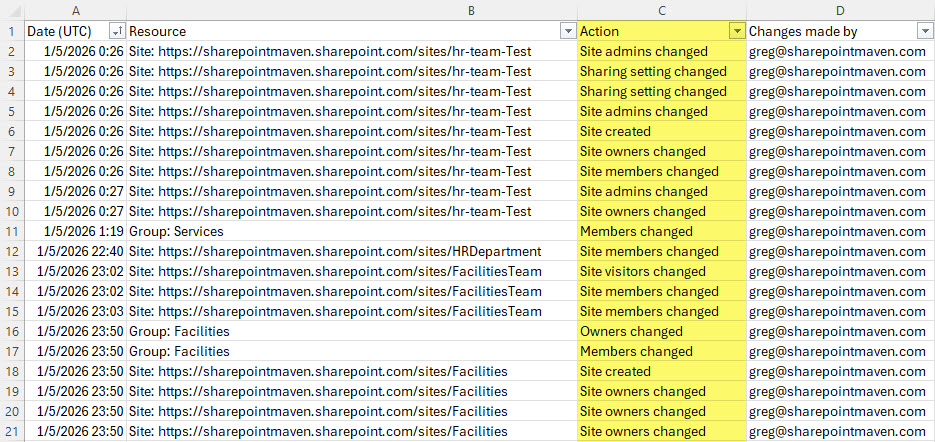
- This is what it looks like. You can filter it further in Excel to find a specific site, user, or action.
- You can also enlist the help of AI to help highlight anomalies.


AI Insights on Change History Report
Nuances about Change History Report
- Change History Report is only available to SharePoint or Global Administrators.
- Access to this report also requires that you either have an Advanced Management add-on license or a Copilot license. Check out this official article from Microsoft to learn more about licensing requirements.
- Once you create a Change History Report, it may take several hours to generate.
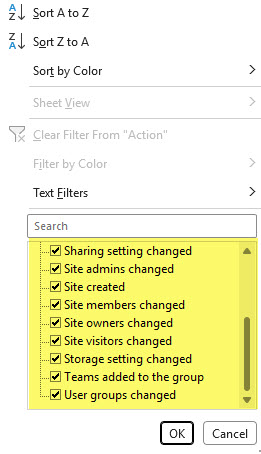
- The complete list of tracked changes the report might contain can be found here. Here is a brief snapshot of actions from the report itself.
 According to Microsoft, the report can cover actions going back 180 days max.
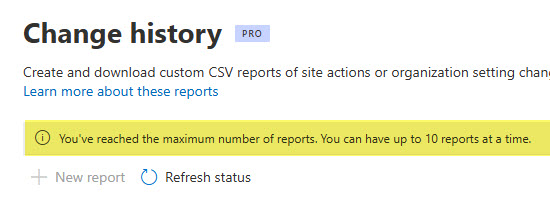
- You can only generate up to 10 reports at any given moment.

Share Article