< All Articles
How to Enable Language Translation for Navigation links in SharePoint
I recently saw a great question on the Reddit forum about translating language for Hub Navigation links. While there is a built-in process for page translations in SharePoint – something I described in this earlier article of mine – how do we translate the navigation links and labels? Let me show you. This technique applies to both Site Navigation and Hub Navigation links.
Step 1: Enable alternate language on your site
The first step is the same as for page translation: enable multiple languages on a site and add an alternate language. I described it here.

Enable Multiple Languages on a SharePoint Site
Step 2: Edit Navigation
- Next, click Edit Navigation next to the navigation links
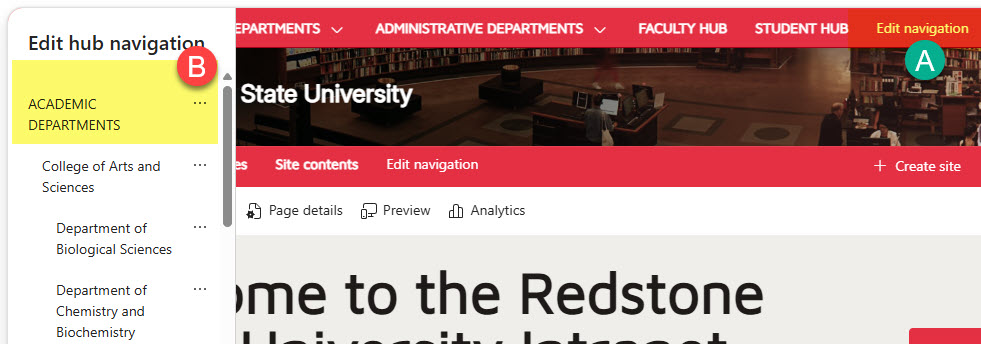
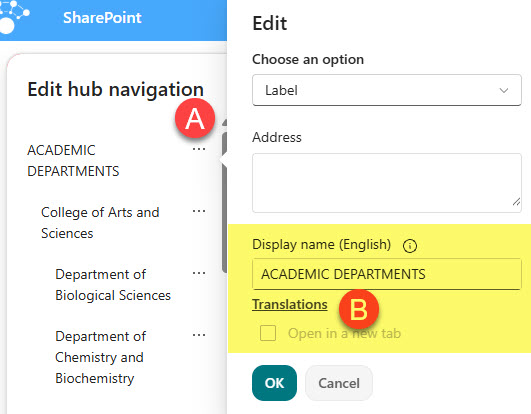
- Next, click the 3 dots next to Link or Label and click on Translations
- You will see additional language field(s), one for each enabled language. Type the translation of a given label into that window and click OK
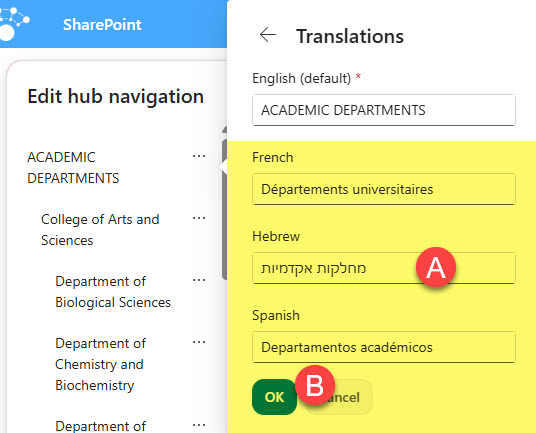
- Click OK, OK, then click Save in the Navigation window.
Nuances about Navigation language translation
- Translated link/label will display based on the user logged in (and their default language set up in their account)
- As mentioned earlier, this works with both site navigation and Hub navigation.

Share Article