How to configure the SharePoint Site Header
I recently blogged about Site Footer, and it turned out to be a pretty popular article – I guess users were amazed by the possible use cases for it in Company Intranets. And I also realized that I never really blogged about the header, even though I did blog about some of its elements (i.e., logo). Today, I would like to address this issue and explain how you can configure the header area to make it both visually appealing and functional.
What is a SharePoint Header?
The header of a SharePoint site is the rectangular ribbon that appears just below the Microsoft 365 App Bar but above a SharePoint page. The most prominent part of the header is the site logo, which is a permanent staple (regardless of whether you upload a logo or not).

How to configure the SharePoint Header
First, let’s clarify who can configure the header. Unlike SharePoint Pages, which regular site members can edit, the header area is restricted to Site Owners.
To change the Header:
- Click Gear Icon > Change the Look

- Click on Header

- You will next be presented with several areas you can customize for the header
Header size
You can choose from the following header types: Minimal, Compact, Standard, and Extended. My favorite one is Extended because it allows you to upload a custom banner image instead of a monotone color. According to Microsoft, the optimal extended header size should be 2560 x 164 pixels (PNG or JPG format).


Example of the ability to upload a custom banner with the Extended Header

Example of the ability to upload a custom banner with the Extended Header

Example of a SharePoint site with an extended Header and a custom banner
Header color
You can also control the header’s colors. Those are derived from the site theme, which I explained in this article.

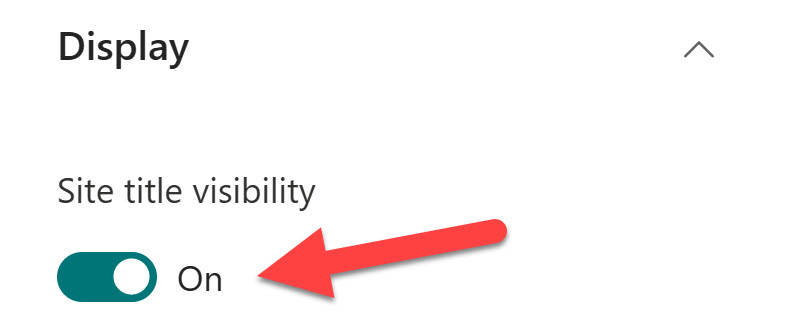
Site Title Visibility
You can also control whether the Site title is visible.
Logo
You can also adjust the site’s logo. You can upload both the site and the thumbnail logo. I explained the difference between the two and provided instructions here.

Nuances about the Site Header capability
- If your site is part of the SharePoint Hub, you won’t be able to control the Header color – it will be inherited from the main Hub Site.
- If you opt for an Extended header, you will also be able to adjust the logo’s alignment within the Header.

- You cannot completely remove the logo from the header. If you do not upload one, you will always see a small square box with the site name’s initials.

- The Header options are identical on both Communication sites and Team Sites
Would you like to see some examples of SharePoint Site Headers? My LookBook 365 portfolio contains some good use cases – check it out.

Share Article