< All Articles
How Sprints Work in Microsoft Planner Premium
One key capability of Planner Premium (yes, the one that requires additional licenses) is managing Sprints for Agile and Scrum projects. In the past, we used Planner buckets to create Sprints, but now Sprints have a default field on the task card plus their own view. Let me show you how you can use it to your advantage.
How to access and utilize the Sprint capability in Planner Premium
Very important: this feature is only available in Planner Premium, not the regular Planner included in Microsoft 365 plans. In other words, you need the right licenses.
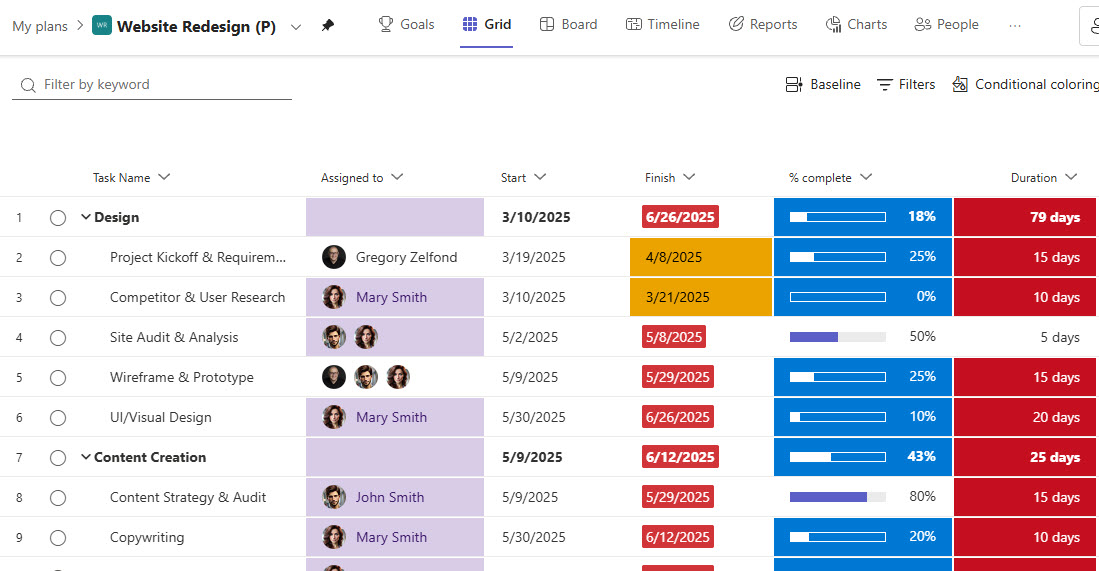
- To demonstrate the capability, I will be using one of the task plans I already have
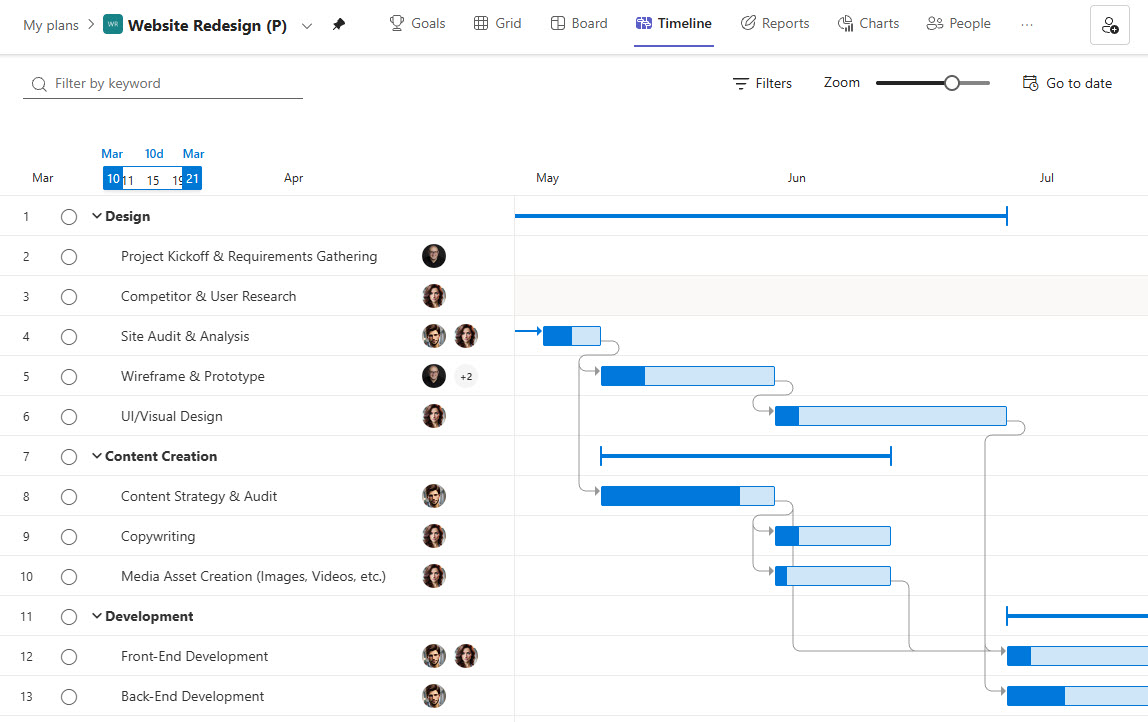
- Since this is Planner Premium, I also have the Gantt Chart (Timeline) view of the same plan with dependencies and task durations for all tasks
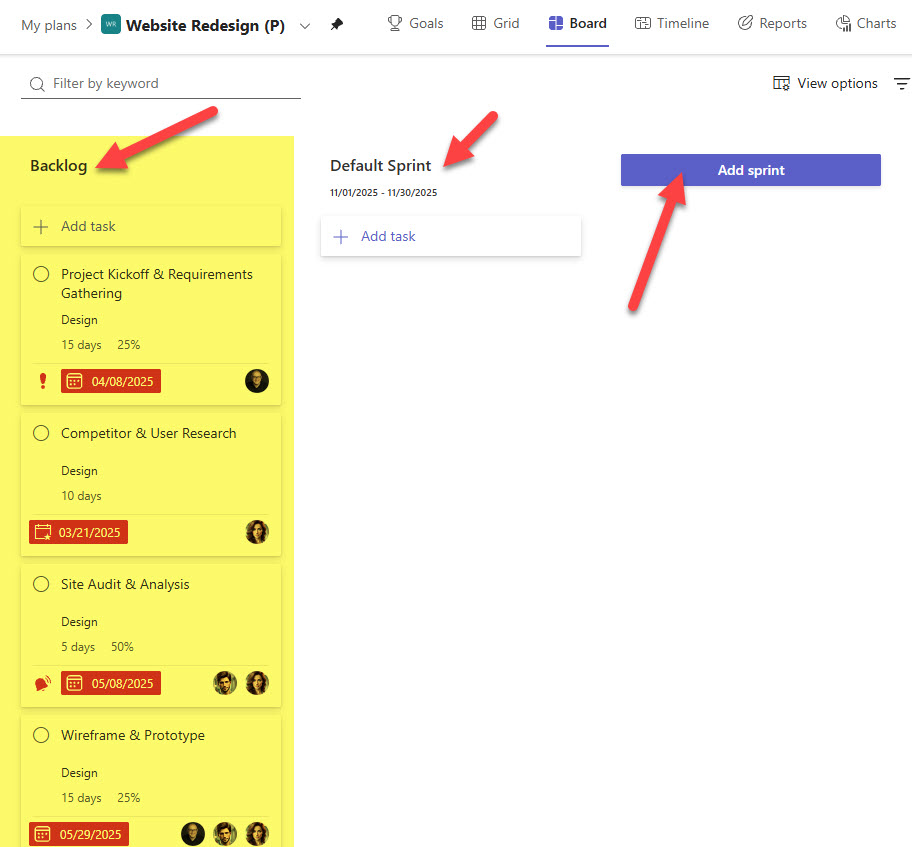
- To access “Sprint View”, click on Board, then Group by Bucket, then Sprint

- By default, it will add all tasks on the plan to the Backlog “Bucket”. You can also create buckets for Sprints and set Sprint Start and end dates.
- Here is an example of me naming Sprints and setting dates on them
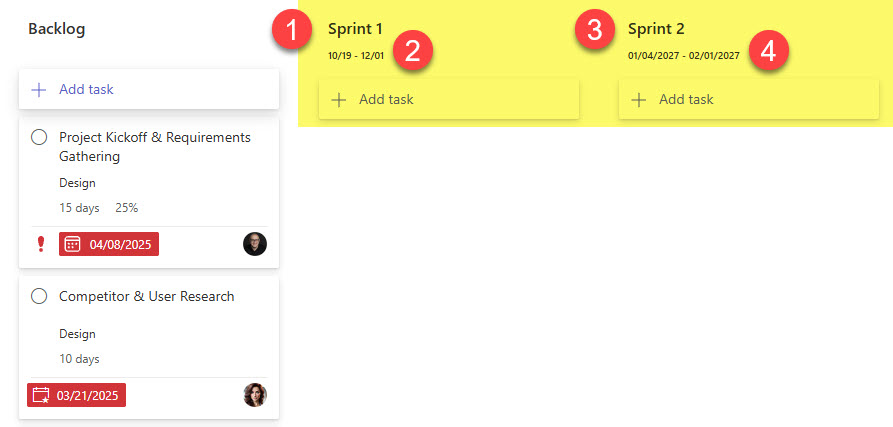
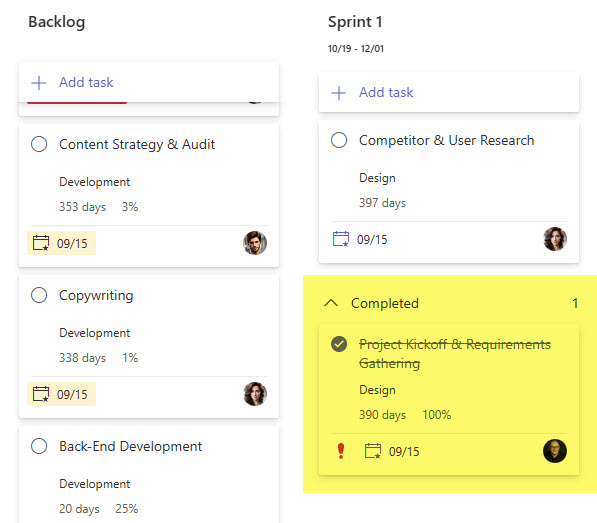
- Just like with a “regular” Board, you can drag and drop tasks from Backlog to Sprint Buckets.

- Alternatively, you can change the Sprint association by opening up a task as well.
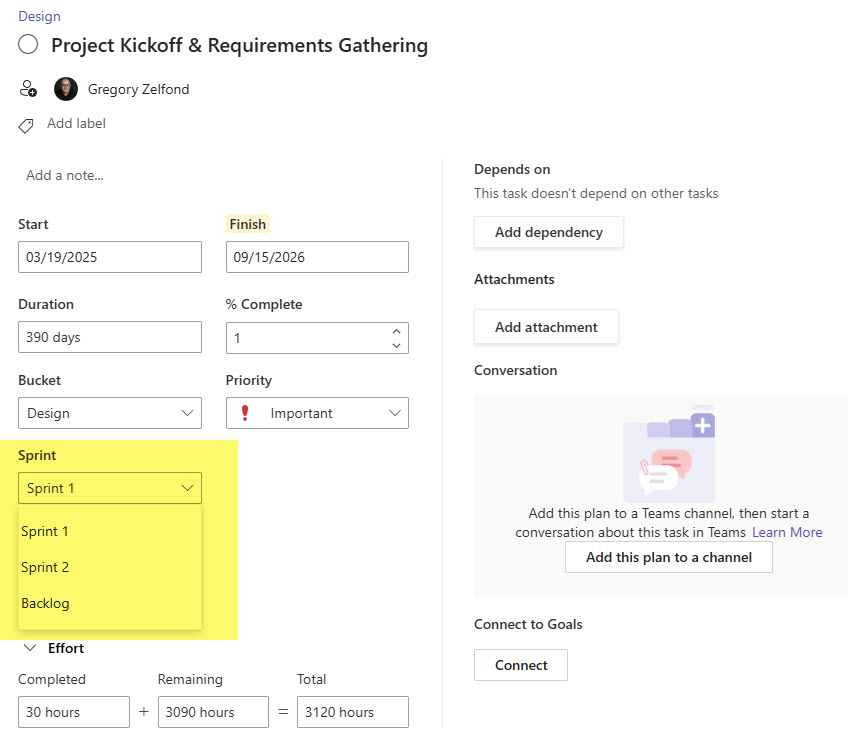
- Other than that, the Sprint View works the same way as the “regular” Plan Board view. A few examples below.

Nuances about Sprint capability in Planner Premium
- Backlog is the default bucket. Any task not assigned to a sprint automatically goes to the Backlog bucket.
- Sprint buckets do not drive scheduling. Assigning a task to a sprint does not set or constrain its start/due dates. In other words, the Timeline (Gantt chart) ignores sprint boundaries and instead follows task dependencies set within the task.

Share Article