Add Agendas and Meeting Notes to Teams Meetings with Loop
Every meeting needs to have an agenda and meeting notes. Otherwise, you are wasting everyone’s time. As an IT Project Manager in my previous life, this was the mantra I used all the time. For years, I utilized Word or OneNote for this purpose. However, with the rollout of the Loop application, it makes total sense to use its note-taking capabilities for this purpose. Luckily, we now have a native integration between Teams meetings and Loop for this purpose. Let me explain.
How to add an Agenda in Teams
- When scheduling a meeting from your Teams Calendar, click Add an Agenda at the bottom of the screen

- This will populate a Loop Page in the body of the invite, consisting of 3 sections: Agenda (checklist), Meeting Notes (text/bullet list), and follow-up Tasks (Tasks component).
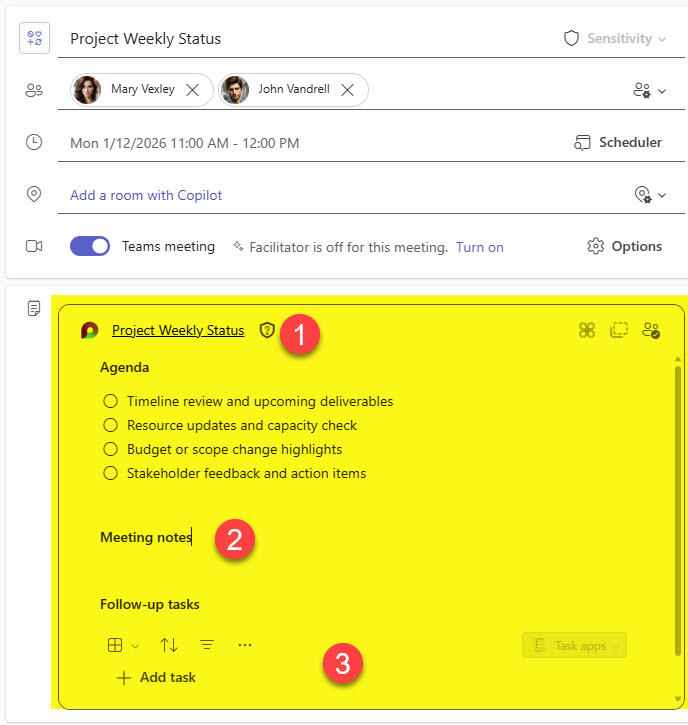
- Before the meeting, you can fill out the agenda items as needed.
How to access the Agenda during the meeting
- Once you are in a meeting, you can click the Notes tab at the top to access Agenda items.
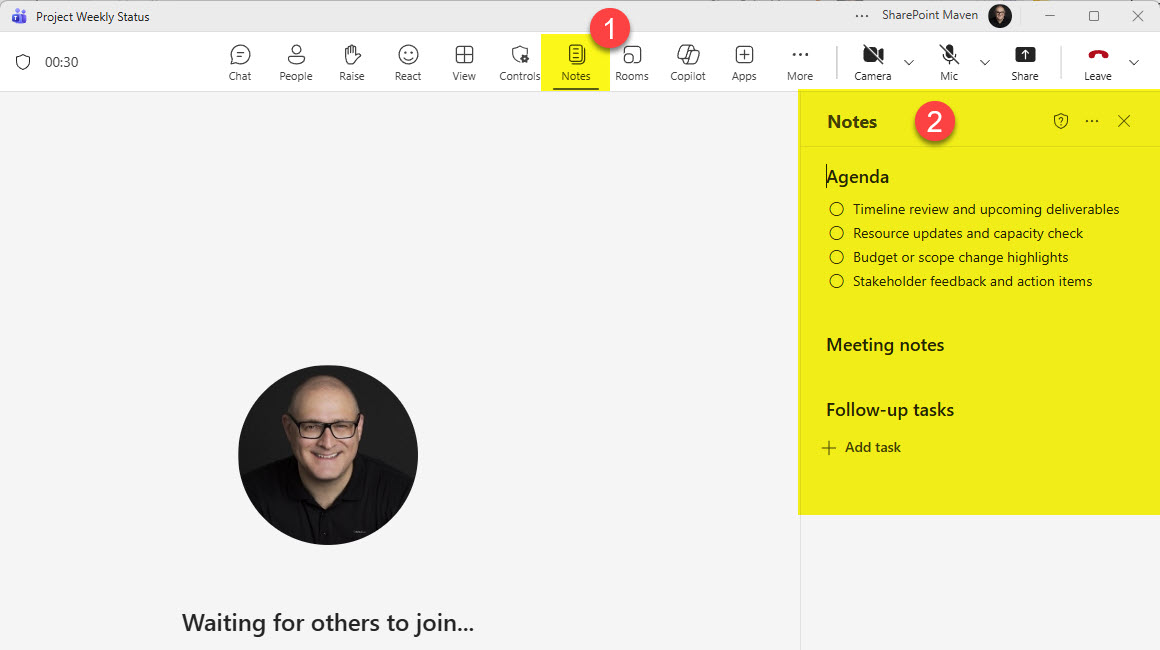
- As the meeting progresses, you can add items to all 3 sections, capture meeting notes, and assign tasks.
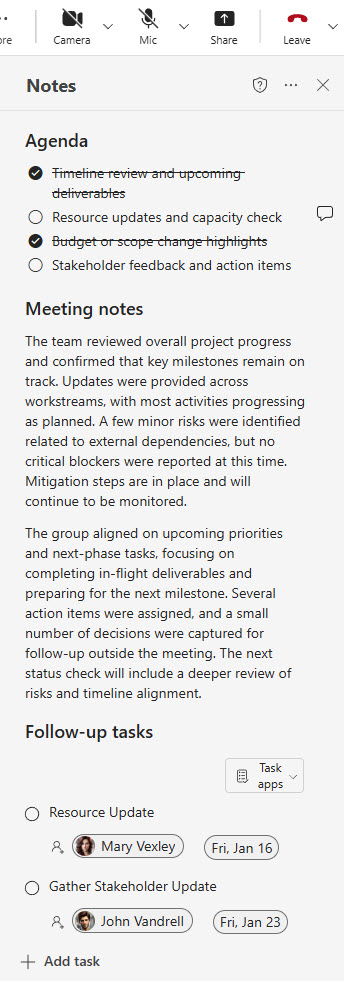
How to access the Meeting notes after the meeting
Once the meeting ends, there are several ways to access the Meeting Notes.
Option 1: Chat Section in Teams
You can always access Meeting Notes the same way you access other Teams assets, such as video recordings, attendance, etc. If you click the Meeting in the Chat section on the left-hand side of the Teams app, click the Recap tab, then Notes to see Agenda, Meeting Notes, and Tasks recorded in the meeting.
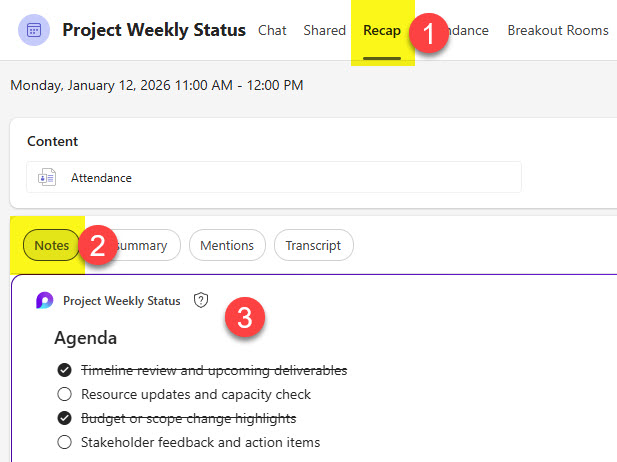
Option 2: Meetings Tab in Loop
Since Meeting notes are stored in Loop, you can access them via the Loop application as well. Once in Loop, click on Meeting notes, then filter by week of the meeting, and you will be able to view the information.
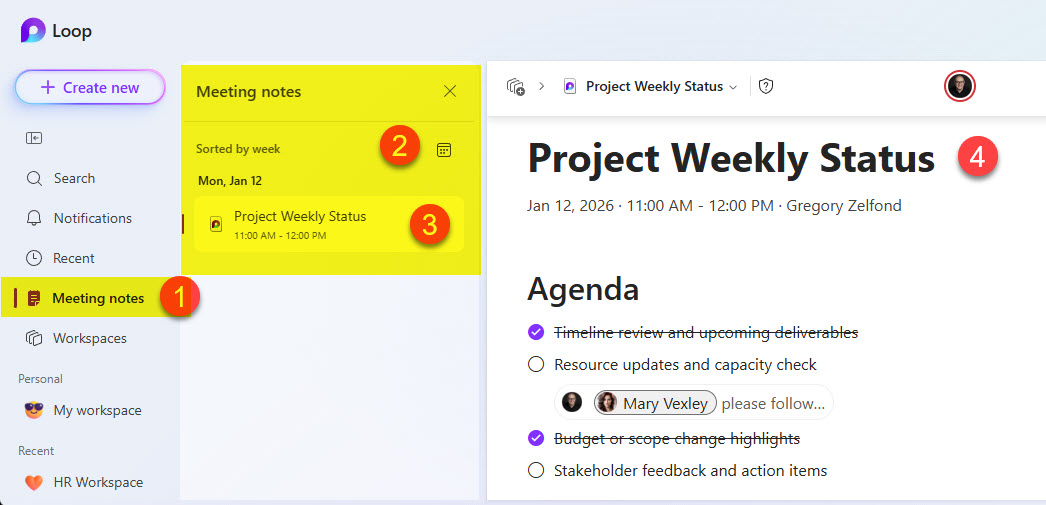
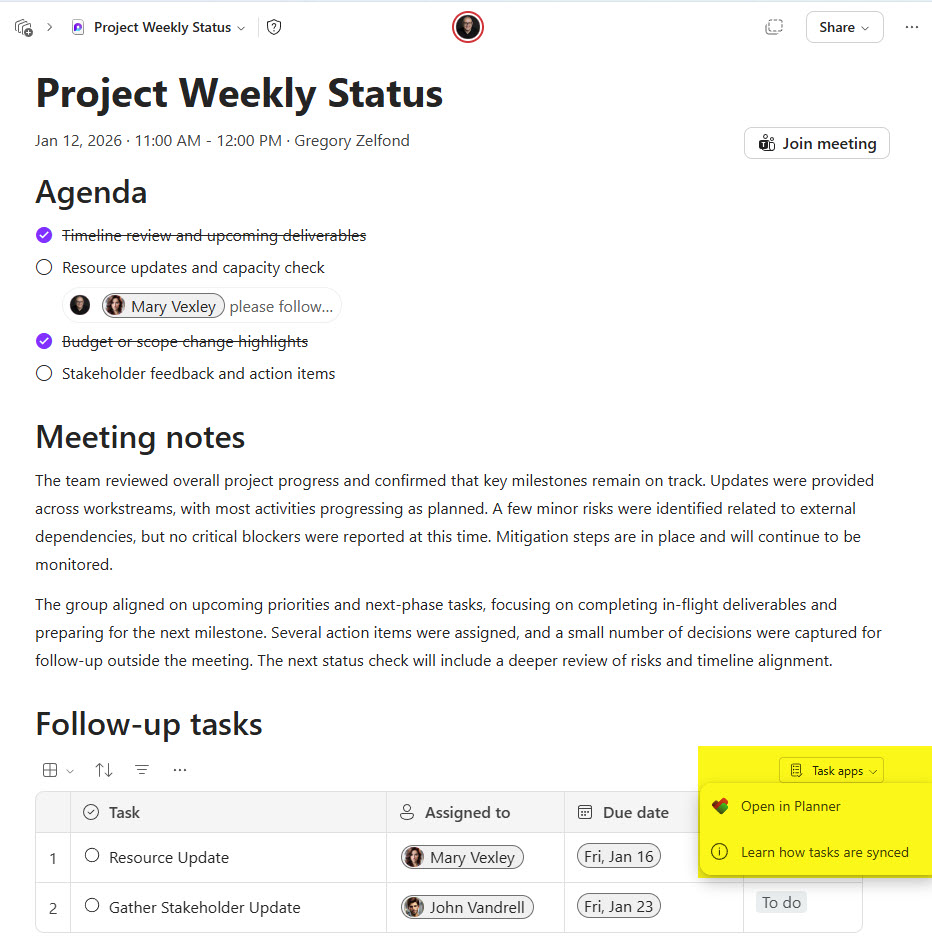
Example of a Meeting Notes Loop Page accessed from the Loop application
Where the Meeting Notes are stored
As documented in an earlier article, Loop stores its components across multiple locations. In this case, it all depends where the meeting was scheduled from.
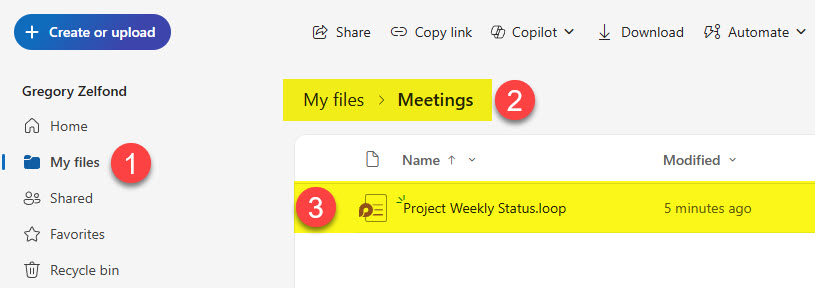
If the meeting is scheduled outside of any Team/Channel, the Meeting Notes are stored in your OneDrive, inside My files > Meetings folder.
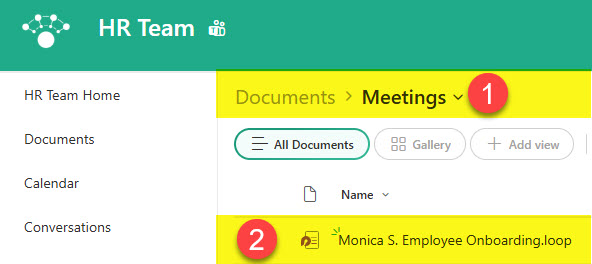
If the meeting is scheduled in a given Team/Channel, the Meeting Notes are stored on a connected SharePoint site, inside the Documents Library > Meetings folder.

Share Article