5 Key Views in Microsoft Planner Premium
The material I am covering in this article is very dear to my heart. Prior to SharePoint consulting, I spent 15+ years managing IT projects. I wish I’d had the tools we have today back then, as they would have made my job much easier. Specifically, I mean Planner Premium, which includes great views that provide better project oversight. So if your organization opted for the Planner Premium experience, this article is for you.
What is Planner Premium?
Planner Premium is a special version of Planner that gives organizations more advanced project management capabilities, including features, reporting, and customization. I explained its history and what it is all about here.
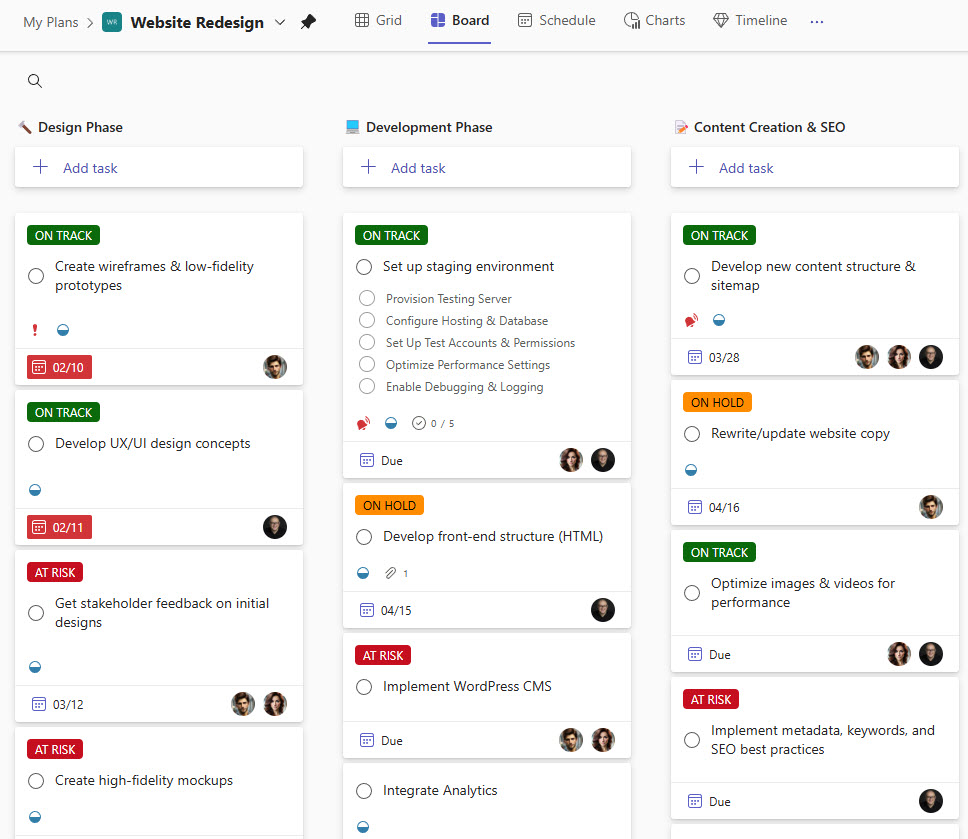
Example of Basic Planner Board View
Planner Premium Views
Once you upgrade Planner to Planner Premium, you get 4 extra views, plus an enhanced Grid view to support project management.
Timeline View
This is probably the main reason you upgraded to Planner Premium. The Timeline view, also known as the Gantt Chart View, allows you to visualize task dependencies. Compared to a list of tasks or a board-style view, the Timeline view lets you visualize the entire project against task dates and the overall schedule.
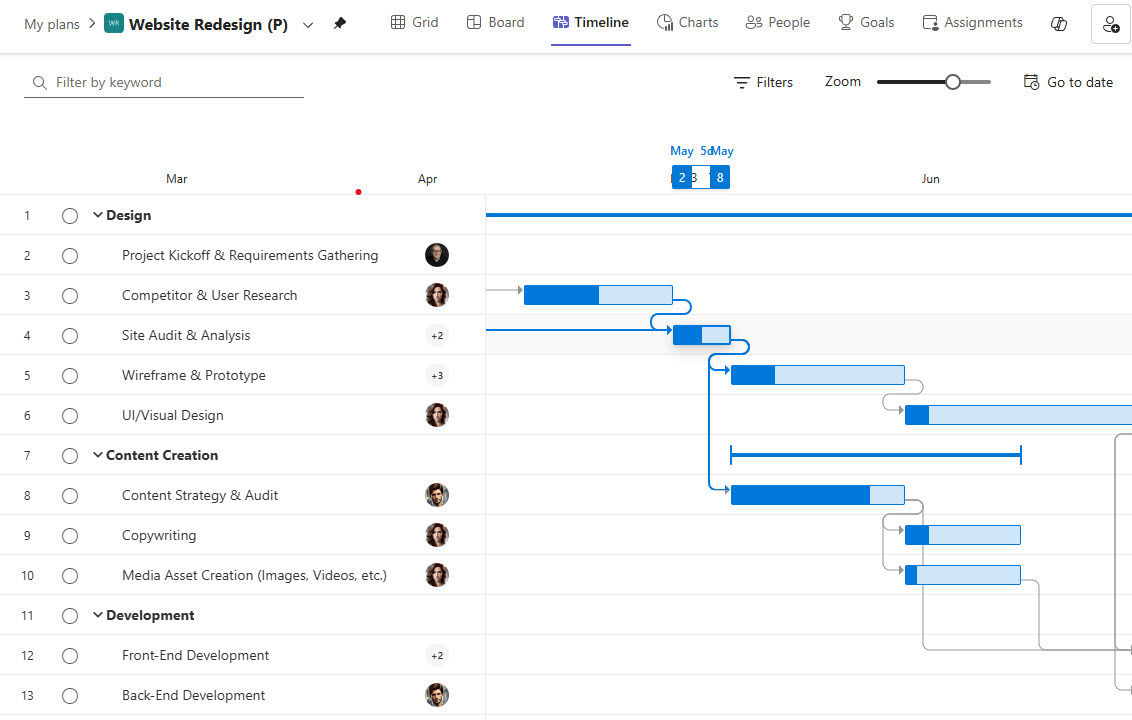
Planner Premium Timeline (Gantt Chart) View
People
I wish we had People View in the basic version of Planner, too. People View lets you quickly visualize each team member’s workload. This is similar to the Basic Board View grouped by Assigned To, but it also groups by Bucket. In other words, it lets you group by 2 levels (People and other parameters), compared to what Basic Planner offers. You can also switch between tasks and hours for the workload.
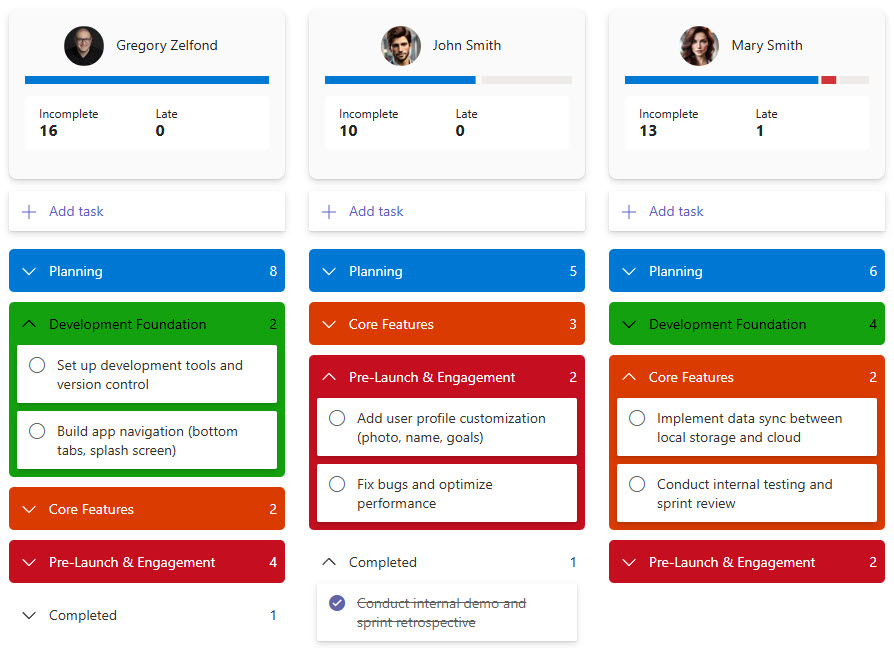
Planner Premium People View
Assignments
The Assignments View lets the Project Manager allocate team members’ effort more granularly over a specific project duration (days, weeks, months, etc.). Say you allocated 30 hours of effort for a given user to complete a task. With the Assignments View, you can allocate 10 hours for Week 1 and 4 hours each week over the following 5 weeks, for a total of 30 hours.
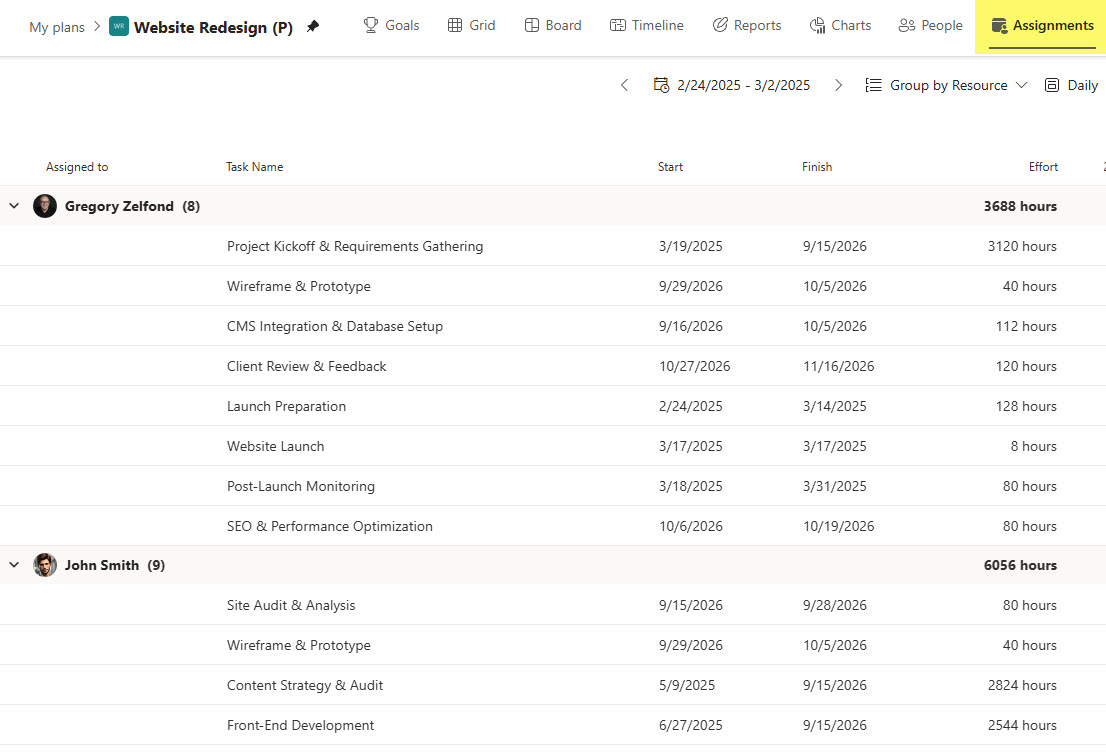
Planner Premium Assignments View
Sprint View
Sprint View lets project managers organize tasks into sprints, which they typically use for Agile/Scrum Projects. Sprint View includes a built-in task backlog and lets you create sprint buckets (Sprint 1, Sprint 2, etc.). I explained how it works in a separate article.
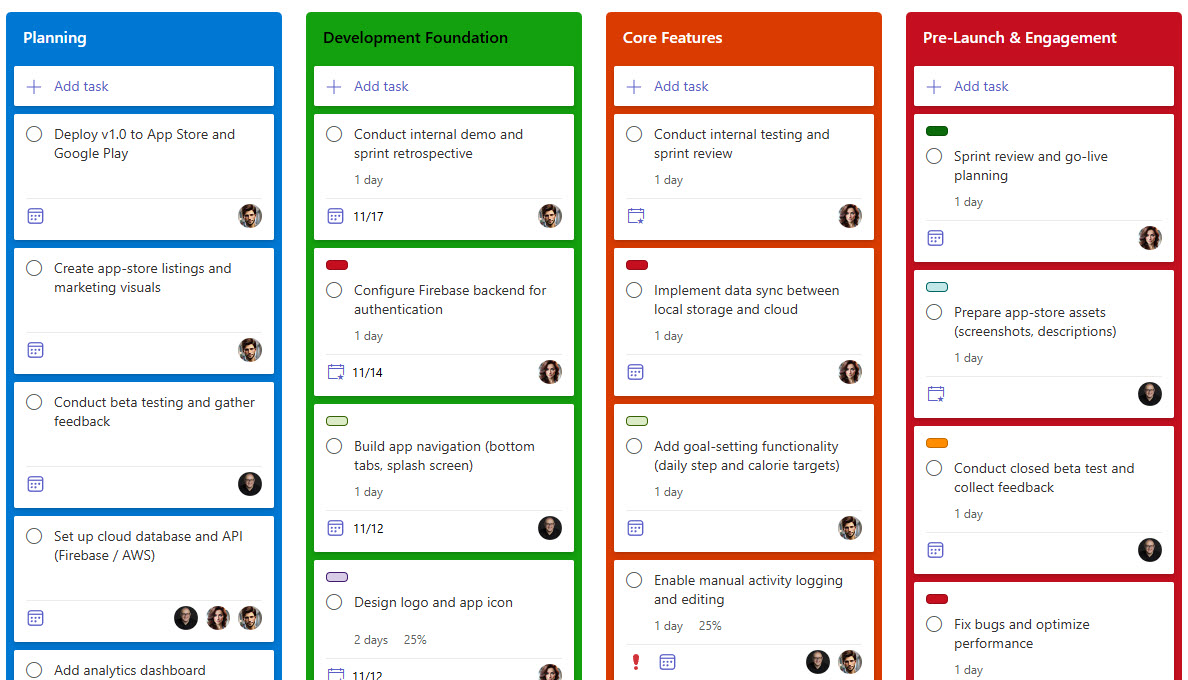
Planner Premium Sprint View
Grid View Conditional Formatting
This isn’t so much a new view as a variation of the existing view. With basic Planner, you just get a boring Grid (list) view that looks like this:
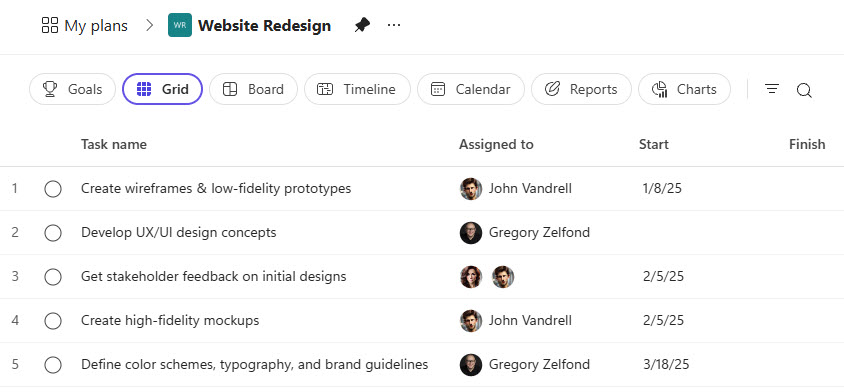
Basic Planner Grid View
And here is a Grid View in Planner Premium.
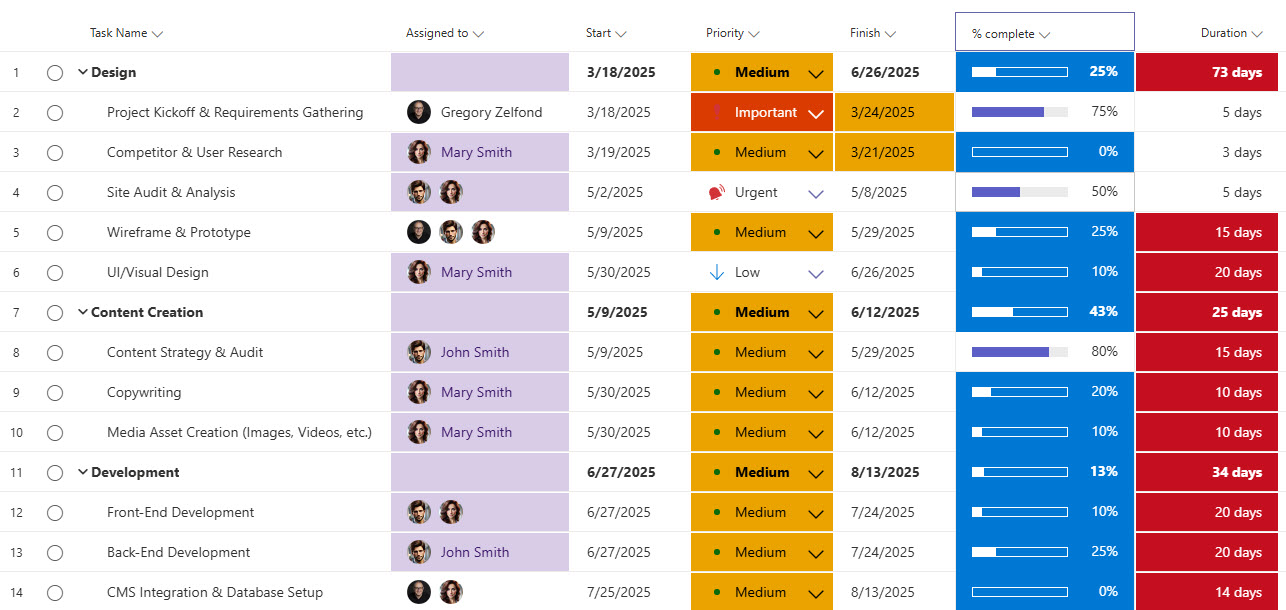
Planner Premium Grid View with Conditional Formatting
The difference here is the ability to apply conditional formatting (which is done automatically for you, but you can customize it). Conditional formatting on late or soon-due tasks provides a much-needed visual cue for project managers and team members alike, helping them quickly identify and prioritize work that needs immediate attention.

Share Article