How to Audit SharePoint Site Permissions Across Your Organization
As I stated numerous times on my blog already, SharePoint historically did not have any decent reporting capabilities when it came to governance of the sites within the tenant. Luckily, with the introduction of the Advanced Management module, this is changing now, and we get more and more reports available to us now. One such report is called Site permissions across your organization. Let me explain to you what it shows and how to generate one.
The objective of the “Site permissions across your organization” Report
The objective of the Site permissions across your organization report is to provide SharePoint administrators with much-needed visibility into site-level access. Specifically, it lists the number of files with unique permissions (think broken inheritance), as well as overall counts for files with different types of sharing links. It can help uncover potential exposure to sensitive content and support proper decisions around Governance.
How to create Site permissions across your organization Report
- Since the report is only available within the SharePoint Admin Center, we need to navigate there. Click on the Microsoft 365 App Launcher> Admin

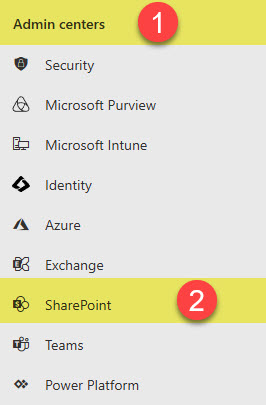
- Under all available Admin centers, click SharePoint
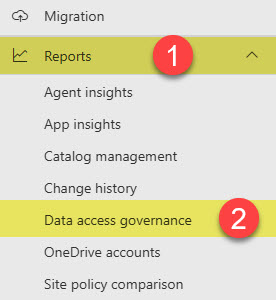
- Under Reports, click Data access governance
- Click on the Reports tab. You will see several Data access governance reports available. The one we are interested in is the Site permissions across your organization report.

- It will already have some data populated, but to refresh the report, click the Run reports button

- You will now see reports being generated
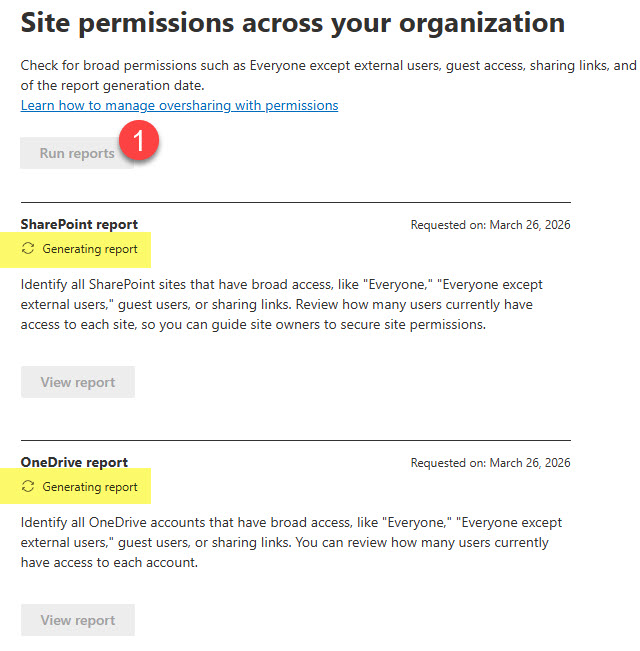
- You will then notice that there are 2 reports being generated: One for SharePoint sites and one for OneDrive accounts
SharePoint Report
SharePoint Report provides information on all available SharePoint sites.
- To view the SharePoint Report, click View report under the SharePoint section
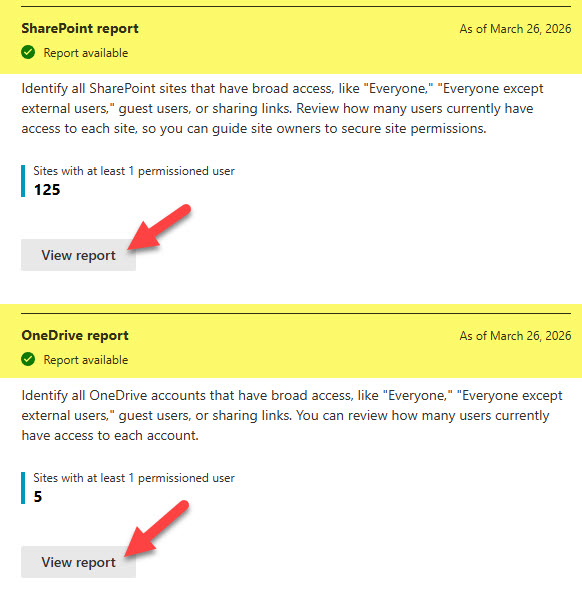
- It will generate the report on the page. To download the report in CSV format, click the Download detailed report button

- Below is a snapshot of the CSV report. You can filter and sort it as necessary.

OneDrive Report
In contrast, the OneDrive Report provides information on all users’ OneDrive repositories.
- To access the report, click the Download detailed report button under the OneDrive section.

- Below is a snapshot of the OneDrive CSV report.

Nuances of the Site permissions across your organization Report
- The report is only available to users who opted for either an Advanced Management add-on license or a Copilot license. As Microsoft constantly changes its licensing packages, I suggest you check out this article on official licensing requirements
- After you click the Run reports button, it might take several hours or longer to generate the reports
- Reports are only available to SharePoint and Microsoft 365 administrators
- When you generate both SharePoint and OneDrive reports, it will only list the top 100 sites with the highest number of unique visitors. CSV download, though, shows the whole set.

- While this report does not provide super-detailed information on who and why shared certain content, it does help identify where high-risk sites exist with excessive access and oversharing.

Share Article