6 ways to create FAQ in SharePoint and Microsoft 365
One of the frequently used elements of SharePoint Intranets and Knowledge Bases is the Frequently Asked Questions (FAQ) section. It typically consists of a question and an answer combination – I’m sure you have seen numerous examples on the Internet. Luckily, we can also create a similar experience in SharePoint and Microsoft 365. In this article, I would like to summarize a total of six ways to achieve this.
Option 1: Collapsible Sections
Probably the most frequently used and visually appealing option is to create an FAQ using the collapsible sections in SharePoint. It uses a Section Title for the question and the section itself (with a Text Web Part or other web parts) for the answer. I have written a separate article on this some time ago – check it out.
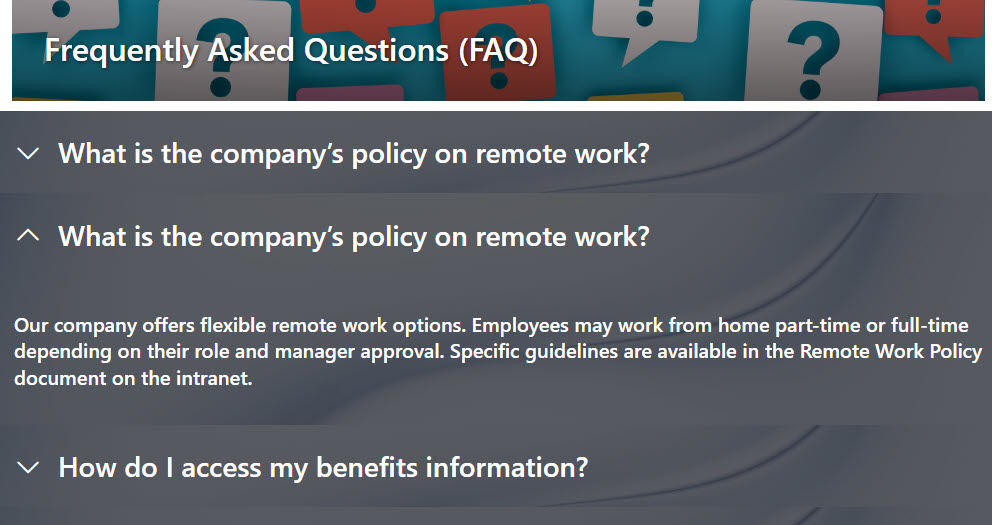
Example of an FAQ built using Collapsible Sections in SharePoint
Option 2: List with metadata
If your questions/answers do not contain a lot of text, you can probably utilize the Lists functionality as well. The idea is that you will create 2 Text columns on a list (Question and Answer) and then group the list by the Question column. Once again, I have an article for you on this as well.

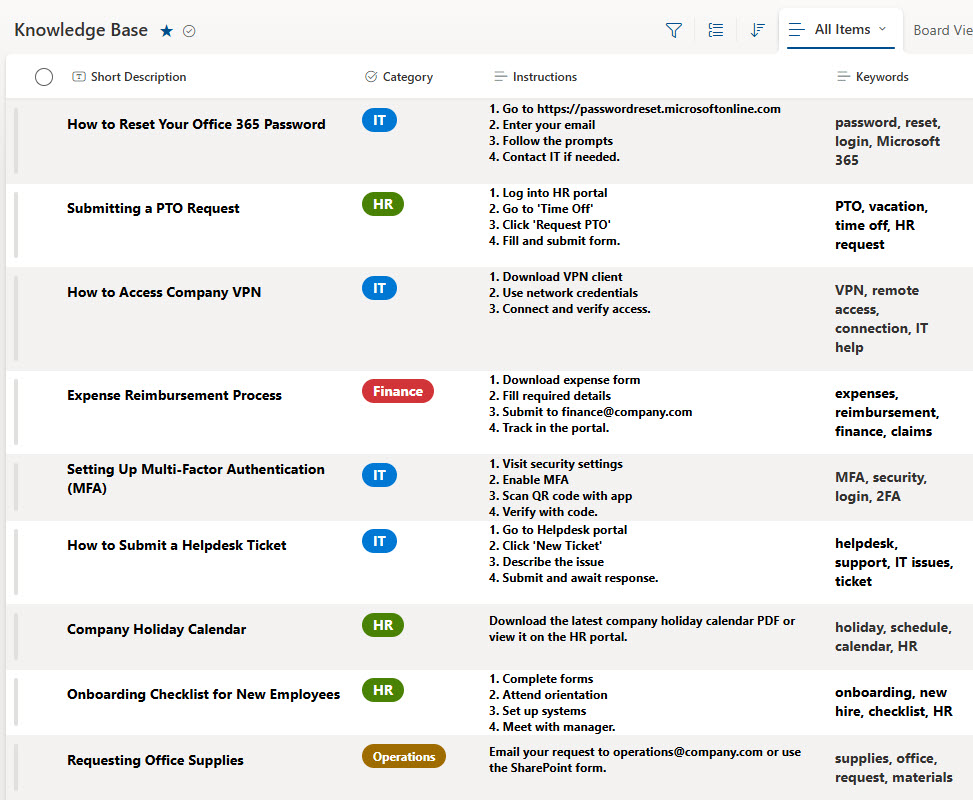
Example of an FAQ built using Lists
Option 3: Site Pages grouped by Question Column
The idea behind this method is that a Site Page represents each answer, and you can also create a Column for the question and group it.
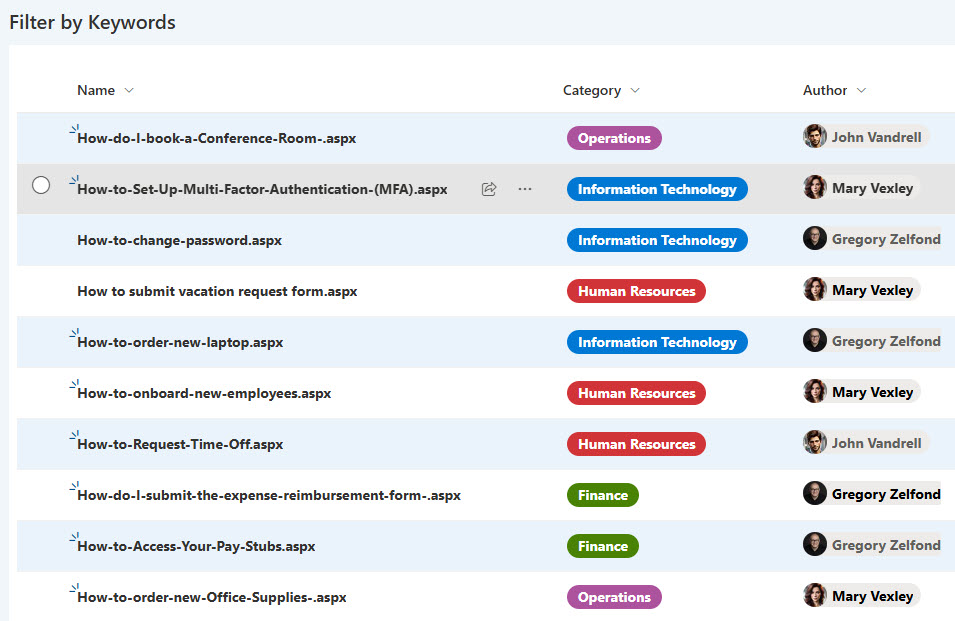
Example of an FAQ built using Site Pages
This method is likely applicable when creating a Knowledge Base using SharePoint pages, as documented in this post/video.
Option 4: Loop Q&A Component
The next option is possible if you use the Loop application. It has a dedicated Component called… surprise, surprise Q&A. I mentioned it as one of my favorites in this article.
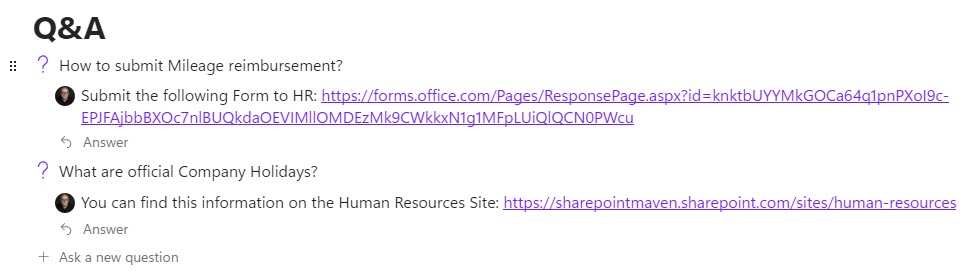
Example of an FAQ built using the Loop Q&A Component
Option 5: Collapsible Headings Loop
This next option is also available in Loop. Just like we have the concept of collapsible sections in SharePoint, we have the concept of Collapsible Headings in Loop. While you will primarily use it to organize Loop Page content, you can also utilize the capability to create an FAQ in Loop.
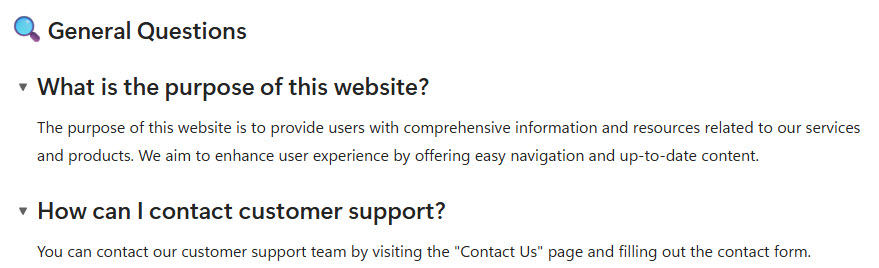
Example of an FAQ built using the Collapsible Headings in Loop
By the way, if you’re looking for assistance in generating content for your FAQ, you can leverage the power of Copilot. I explained this capability in this article.
Option 6: FAQ Web part Copilot
Another relatively recent option we have in Microsoft 365 is to use the FAQ Web Part in SharePoint. The biggest advantage of this option compared to all the other ones outlined in this article is that the web part automatically generates content based on the files chosen using Copilot AI. I explained how to add the FAQ Web Part to the SharePoint page here.
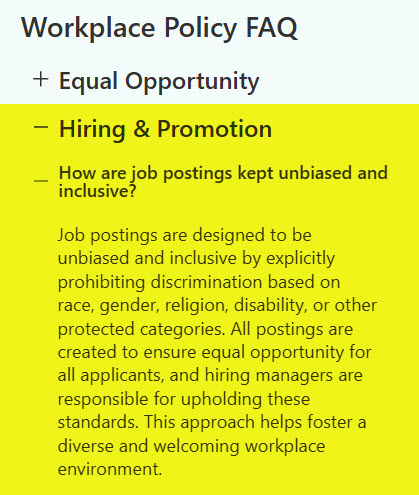
Example of an FAQ built using the FAQ Web Part in SharePoint
This particular option has two big advantages:
- Content is automatically generated thanks to Copilot AI
- You can place the FAQ Web Part in any column on a page, even a Vertical Section – something not possible with Collapsible sections, for example
For additional examples of FAQs and Knowledge Management options in Microsoft 365, please check out my LookBook 365 Portfolio.


Share Article