< All Articles
How to Create an Audio Overview for a File in SharePoint
AI and Copilot continue to evolve rapidly within the Microsoft 365 ecosystem. Some time ago, I blogged about basic Copilot actions you could perform in SharePoint and OneDrive, such as comparing files or creating a summary/FAQ. Since then, another cool feature has been added that lets you create an audio overview file. Let me show you how it works.
- Navigate to a file within SharePoint and OneDrive. Select the file, then AI Actions drop-down, then select Create an audio overview.

- You will then see a system generate an audio. This may take a few minutes.

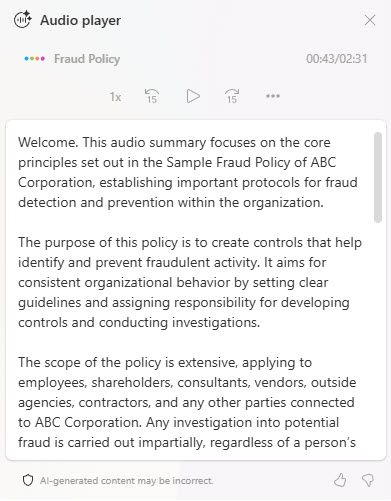
- Once completed, the player will start playing the audio file

- You can choose to save the Audio File to your OneDrive

- In case you would like to read the transcript of the audio, you can do so as well.
Important Nuances
- You do need to have a Copilot license assigned to your account to be able to take advantage of this feature.
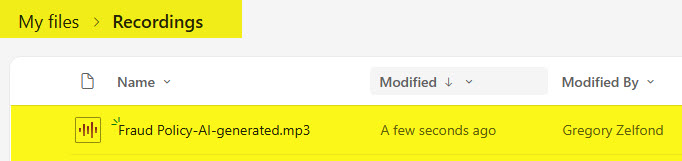
- When you opt to save the audio file generated to OneDrive, it will be saved as an MP3 file inside the Recordings folder. It will also have a suffix added, as shown below.
- As this is a relatively new feature, it does have some limitations. Please check this article to learn more.

Share Article