How to connect a Team Site to a Microsoft 365 Group
I am a huge advocate of phased SharePoint implementations. In other words, if you are transitioning from file shares to SharePoint and would like to keep things simple and ease user adoption, I always recommend starting with regular Team Sites, not connected to Teams or Groups. This would make it easy for users to become familiar with SharePoint’s document management capabilities first, without being overwhelmed by Teams, Teams Channels, and other Group assets like Calendars and Planner. In fact, I wrote a separate article on the topic, outlining all the various use cases for a Team Site without a Group.
However, say you did start with those sites and are now ready to take the users to the next level. Luckily, you can connect the Team Site to a Microsoft 365 Group, which will also add other apps, such as Group Calendar, Teams, and Planner. So in this article, I would like to explain how to connect a Team Site to a Microsoft 365 Group and some important nuances about it.
Microsoft 365 Group Elements
To ensure clarity on our approach, the diagram below illustrates the structure of a typical Microsoft 365 Group. Whether you create a regular Team Site in SharePoint or a Team in Teams, you get all of these elements bound by the membership of the Microsoft 365 Group.
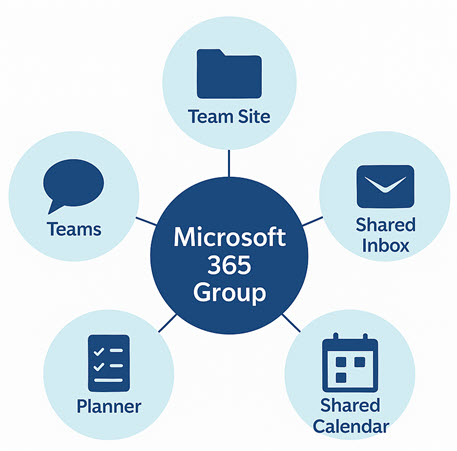
Microsoft 365 Group elements
When you create a Team Site without a Microsoft 365 Group, you only get a Team Site, without any additional elements. In the following steps, I will demonstrate how to connect that Team Site to a Microsoft 365 Group, should u decide that you need additional collaboration apps connected.
Existing Team Site without a Group
For this article, I will be using an existing SharePoint Team Site that does not yet have a Microsoft 365 Group attached.

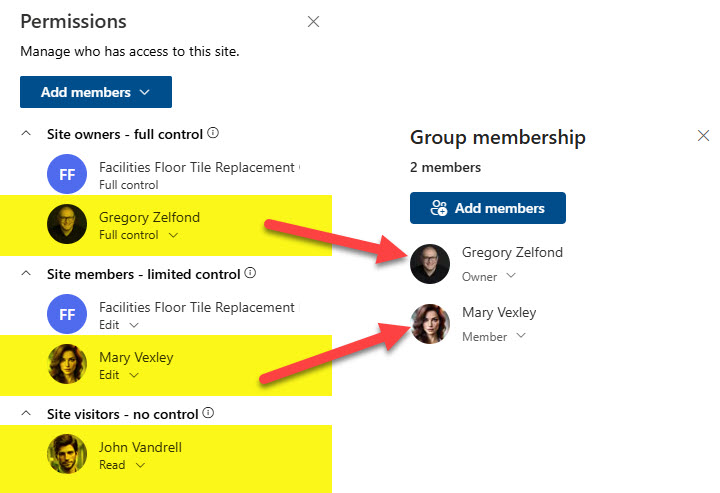
As a baseline, I have the following permissions set up on the site through the 3 SharePoint security groups:

How to connect a Team Site to a Microsoft 365 Group
- To connect a Team Site to a Microsoft 365 Group, click the Gear Icon in the upper-right-hand corner, then Connect to new Microsoft 365 Group
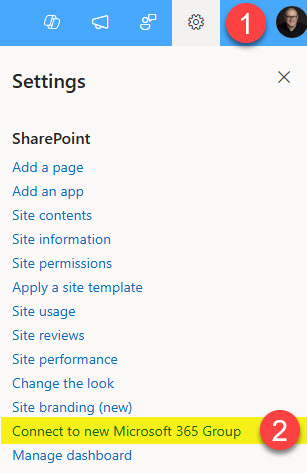
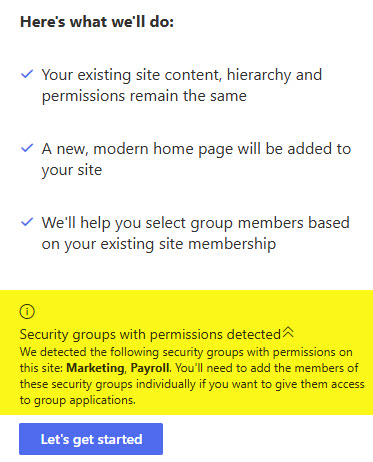
- On the next screen, click the Let’s get started button. Note the text highlighted in yellow, it pretty much explains what I mentioned above.

- Since the site is being connected to a Microsoft 365 Group and is getting a shared Inbox (email distribution list), it checks for the availability of the email alias. You can also adjust the Privacy setting of a group (to learn more about Public vs. Private groups, click here). Click the Connect group button.
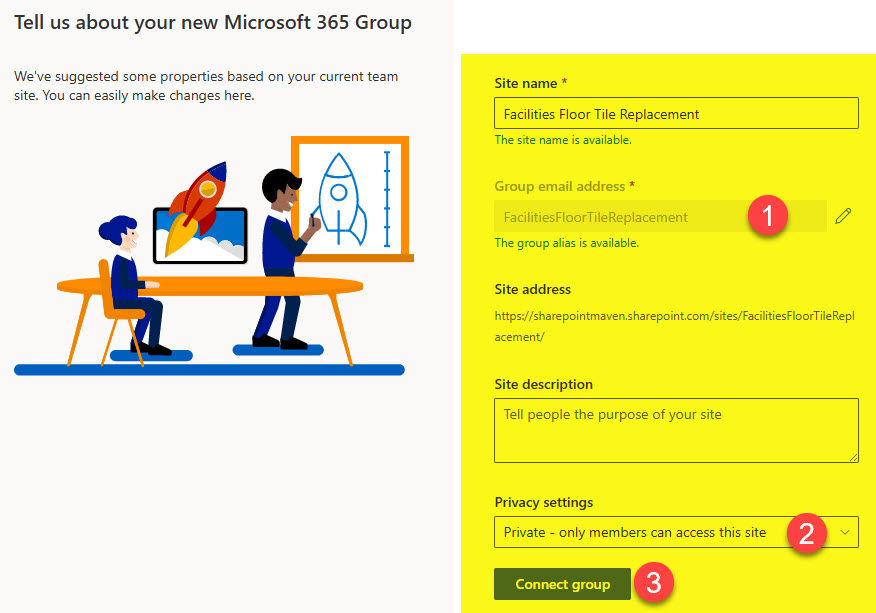
- Based on the original Team Site Permissions, Mary, a member of a SharePoint site, was added to the Microsoft 365 Group membership. You can also make changes or add other members while you are here.

- Click the Finish button

What happens when you connect a Team Site to a Microsoft 365 Group
1. New Homepage
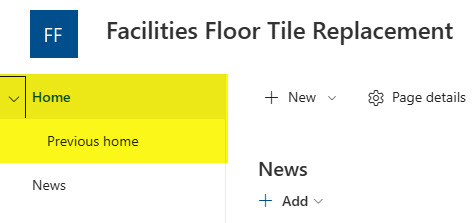
Your Team Site will get a new homepage. If you have customized the previous homepage, no worries. Just navigate to the Site Pages library (Gear Icon > Site Contents > Site Pages) and you will see both the old homepage Home.aspx and the new one Home(1).aspx. To revert to the old homepage, just right-click on it and choose Make homepage. I provided instructions here.
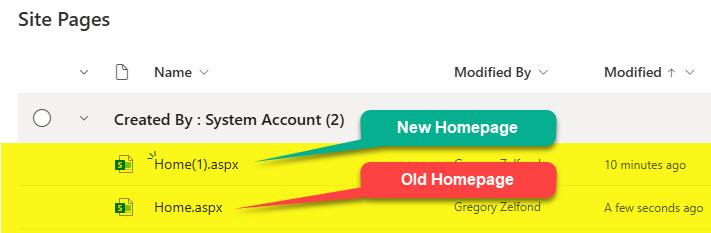
2. Revised Quick Launch Navigation
Likewise, you will see a few additional links appear in the Quick Launch navigation on the left-hand side. Most importantly, you will see links to the new and old homepages I mentioned above. To clean up and edit/remove the added links, edit the navigation.
3. Group Membership based on Team Site Security
You will notice that SharePoint Team Site Members will now be automatically added as Members of the newly created Microsoft 365 Group. Likewise, SharePoint Team Site Owners will become owners of that same Microsoft 365 Group. These can be further adjusted as necessary, but the initial group membership is determined by the SharePoint Team Site permissions!
Important Nuances
- When you connect a Team Site to a Microsoft 365 Group, the permissions of the SharePoint site remain unchanged. So what that means is that you would need to manually remove users from the Owners/Members/Visitors SharePoint Security groups, as you would want to control site security via group membership now (to avoid confusion and stick to best practices)
- If you managed Team Site permissions via the AD/Entra ID security groups, once you connect the site to a Microsoft 365 Group, those groups will be ignored. In other words, they will remain embedded in their respective SharePoint security groups. However, if you want users from those groups to have access to other Microsoft 365 group assets, such as Teams and Planner, you will need to add them manually to the group membership. Below is a message you will see when you connect such a site to a Microsoft 365 group.
- When you connect a Team Site to a Microsoft 365 Group, it adds a Group Calendar and a Shared Inbox (Distribution List). Planner and Teams are not automatically created or added, and can be done manually afterward. I explained how to connect a Team to a Group here and Planner to a Group here.
- If your Team Site had Everyone except external users group as either Members or Visitors, upon connection to a Microsoft 365 Group, it will default to Public Group. If you change it to Private, Everyone except the external users group will be removed from the Team Site SharePoint security groups
- It is important to note that you can only connect a Team Site to a NEW Microsoft 365 Group, not an existing one. This is because there can only be one site connected to a Microsoft 365 Group.
- Likewise, and I hope this is obvious, you can only connect a Team Site without a Group to a Microsoft 365 Group. You cannot connect a Communication site to a Microsoft 365 Group. To learn more about the various types of sites, refer to this article.
- Once you connect a Team Site to a Microsoft 365 Group, it cannot be disconnected. That marriage is permanent! 😂

Share Article