Threaded Conversations in Teams Channels
Most of the articles I write about the Teams app focus on its integration with SharePoint. However, there was one recent change in Teams that made headlines about how chats appear. I am talking about threaded conversations. One big issue I find with Teams is that sometimes it resembles texts on a phone, where everyone spits out the text at lightning speed. This makes all these messages frustrating to digest and read. Well, we now have an opportunity to organize chat via threads, which improves things quite a bit. Let me explain.
Posts View in a Microsoft Teams Channel
By default, posts in the Teams channel appear in chronological order, with replies underneath. So if there is a conversation with lots and lots of replies, there will be a lot of vertical scrolling and information to consume.

Posts View in a Microsoft Teams Channel
Threads View in a Microsoft Team Channel
We now have an alternate way to view the same posts by switching to the Threads View. To do so:
- Click on the three dots next to the channel you would like to change

- Under the Layout section, click on the Threads option and click Save.
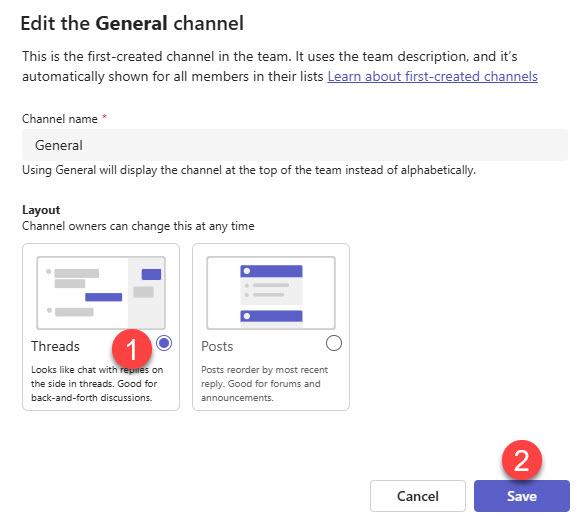
Once you switch to the Threads View, you will notice a much cleaner view. The posts will be organized by conversation, with the number of replies appearing underneath. If there are replies, the number of replies will appear under the conversation.

Clicking the number of replies opens the specific conversation in the right-hand tab, where all replies are displayed.
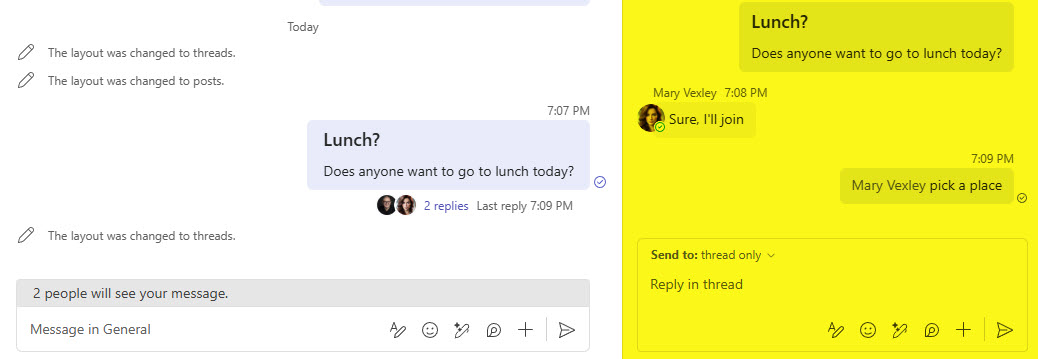
You can then respond to the thread on the right-hand side as well.
Nuances about Threads View in Microsoft Teams
- The Threads view option is only available in Teams channels, not in Teams chats.
- Only Team Owners or Channel Owners (in case of Private and Shared Channels) can alter the view of the channel between Posts and Threads.
- The change to the Channel view is global for all channel users.
- All the new channels created in Teams now default to the Threads view. You can change it during the channel creation or after.

- When a channel has a Posts view, the tab on top would say “Posts“. If the Threads view is chosen, Posts will change to Conversation.


- You can choose to follow or unfollow threads if you do not want to be overwhelmed by all the notifications.


Share Article