Teams Custom Summary Meeting Minutes
As a SharePoint Consultant, I have lots and lots of meetings. Some are introductory calls with potential clients, some are hourly consulting sessions, some are project Status meetings, and some are live training sessions that I deliver. One thing I dread is creating meeting notes. For years, I compiled them manually, so I knew what we discussed at every meeting and what my action items were. One feature I wished I’d had when I started consulting in 2013 was AI generating them for me. Luckily, Microsoft Teams and Copilot provide those tools now!
We have had Copilot AI transcribe our meetings for some time already. However, one of the latest additions is the ability to customize those transcriptions and generate custom summaries or meeting notes. In this article, I will show you how easy it is to create a summary – trust me, you will never have to type them yourself again!
How to create Custom Summary Meeting Notes
-
- For Custom Summaries to work, you need to enable recording and transcription during a Teams meeting. If you just recorded the meeting but did not transcribe, no worries; you can always do it manually afterward.
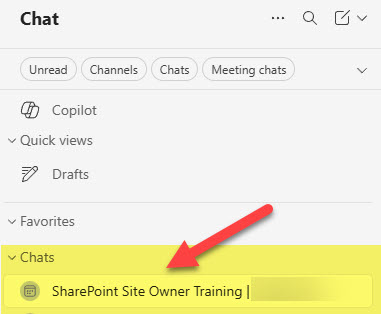
- After the meeting ends, click on the meeting within the Chat section
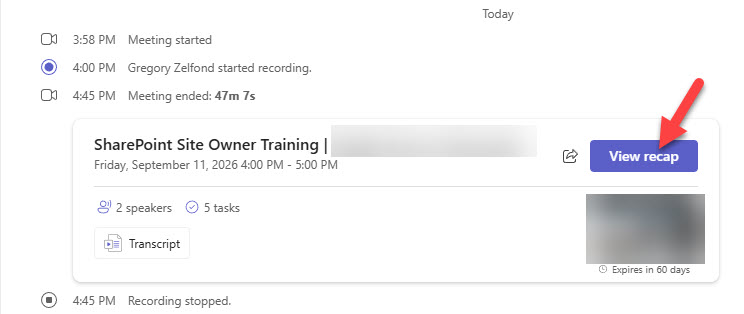
- Click on View recap to access meeting artifacts
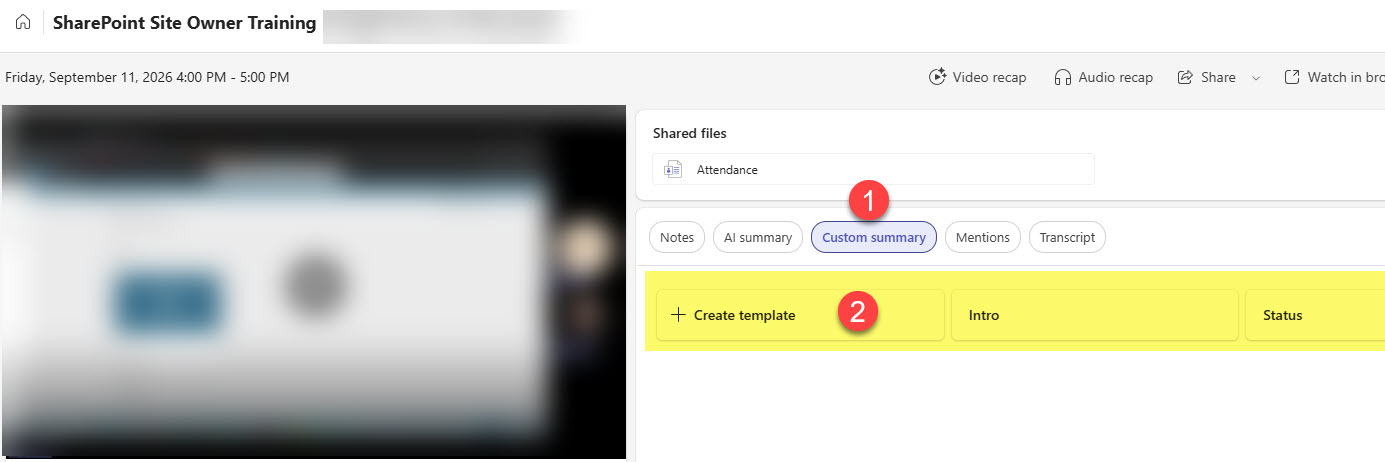
- Click on the Custom summary button, then create template
- From there, you can create custom summaries and provide custom instructions. For example, in my Teams App, I created several templates for different types of calls I have with clients.
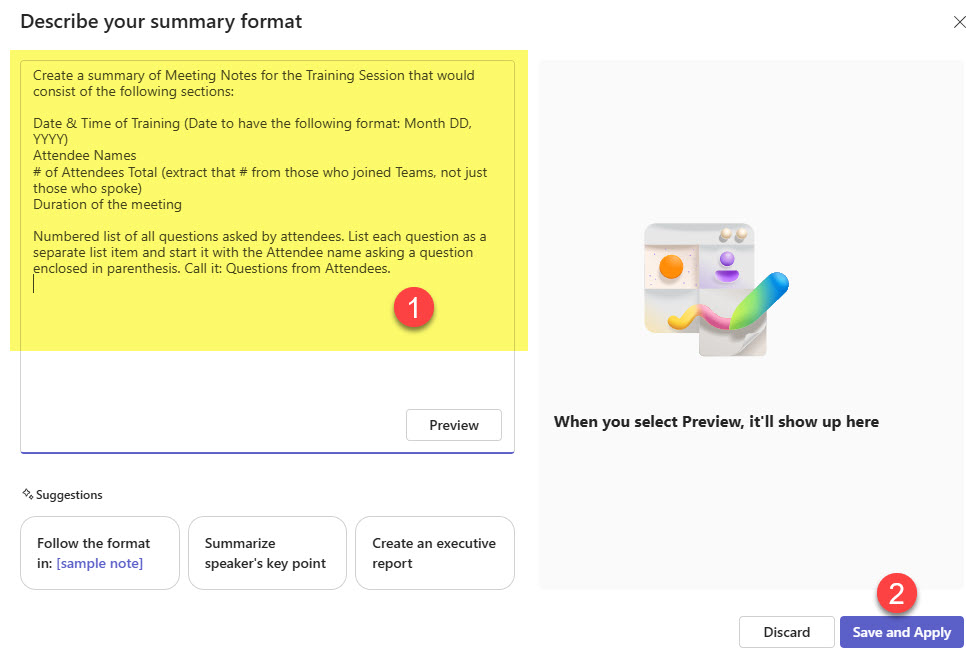
- Once the summary is generated, you can copy and paste it into a tool you use to keep meeting notes (e.g., Word, OneNote, Loop).

- You can always edit templates and add instructions and clarifications by clicking the three dots and selecting Edit.
- By the way, if you are wondering, those custom templates you create are stored in your OneDrive, in the Recordings folder.
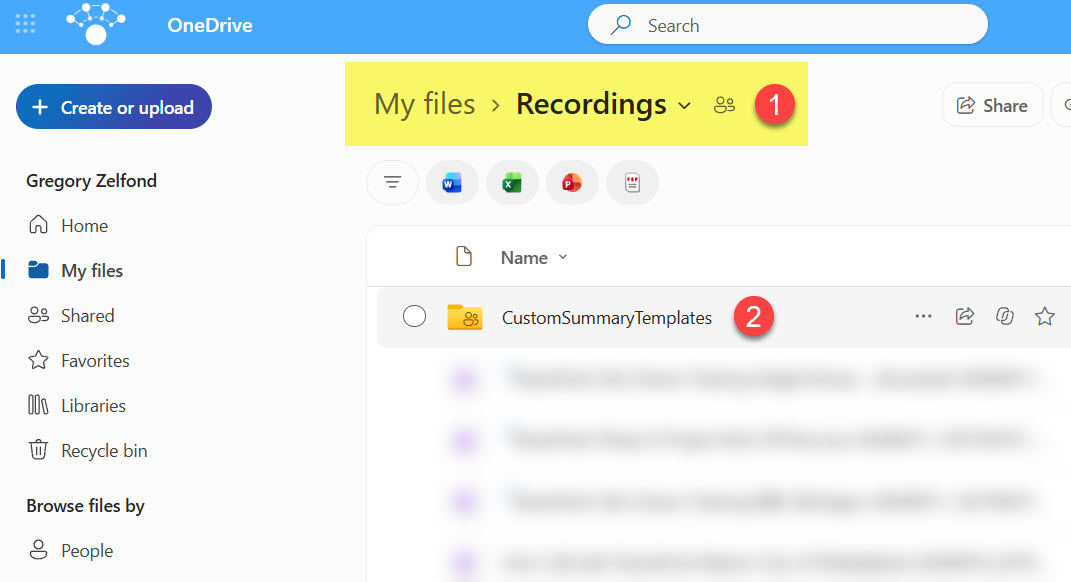
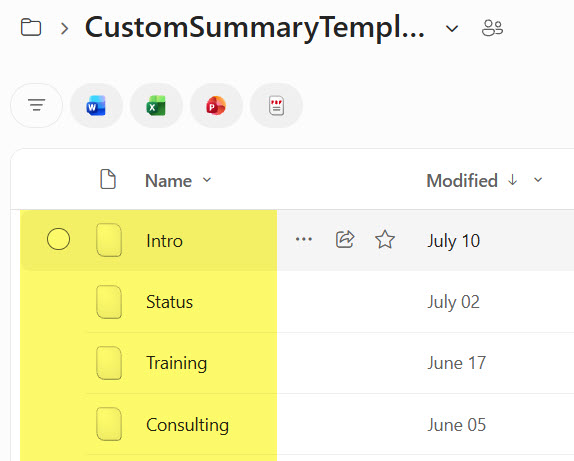
Custom Meeting Summary Templates in OneDrive

Share Article